Integrations: connected through NexHealth (cloud)
Automated insurance verification for Dentrix Ascend
Ardent works alongside Dentrix Ascend through the NexHealth Synchronizer’s cloud connection. It reads upcoming appointments and each patient’s insurance on file, verifies benefits with the payer, portal first and a phone call for what is left open, then fills your practice’s own breakdown sheet and files the PDF to the patient file before the visit.
- Connected through NexHealth’s cloud path: a dedicated NexHealth user in Ascend plus NexHealth’s Chrome extension. It is not a direct Dentrix Ascend integration.
- Reads the schedule, patient details and the insurance coverage on file; never writes into Ascend’s coverage tables.
- Files the finished sheet as a PDF directly to the patient file. Ascend has no document folders through NexHealth, so there is nothing to pick.
- No appointment note on Ascend: NexHealth does not support a note update there, so failure reasons go to the 7:00 AM email and the Ardent app.
How it works
How does Ardent work with Dentrix Ascend?
NexHealth’s Synchronizer reads your Ascend schedule and the insurance record on each patient. For each visit inside the window, Ardent checks the payer: the provider portal first, or EDI 270/271 or a faxback where that is the payer’s channel, then an AI phone call for required blanks still open. It draws the answers onto your sheet and files the PDF through NexHealth to the patient file.
What Ardent reads from Dentrix Ascend
- Upcoming appointments: time, provider, operatory, confirmed / cancelled / no-show flags, and the appointment note.
- The patient: name, date of birth, patient ID.
- The insurance coverage on file: carrier and plan, subscriber ID, relationship to the subscriber, effective and expiration dates, group number, employer, and the payer ID Ardent uses to pick the payer’s playbook.
- Chart history where Ascend exposes it, used to answer the office’s own questions, never a payer’s.
What Ardent writes back to Dentrix Ascend
| Artifact | Written? | Where and when |
|---|---|---|
| Chart document (PDF) | Yes | Directly to the patient file, because Ascend has no folder structure through NexHealth. Named insurance-eligibility-<first>-<last>.pdf; filed once per appointment after a successful check inside the window. |
| Appointment note | No | NexHealth supports a note update only on Dentrix, Dentrix Enterprise, Eaglesoft and Open Dental; elsewhere the next sync would put the old note back, so Ardent does not write one. Reasons appear in the 7:00 AM email and in the app. |
| Coverage-table fields | No | Never. Plan entry in Ascend stays with the office, done from the filled sheet in the chart. |
Swipe to see the whole table →
The PDF holds the completed sheet page or pages, then the payer’s own documents the portal preserved, any received fax, and the portal screenshots Ardent kept, tiled to letter pages. The REP blank reads Ardent on an unattended upload; the date is the day the check finished.
Setup
How the connection works
Dentrix Ascend is a cloud PMS, so nothing is installed on a server. Your office creates a dedicated NexHealth user in Ascend and installs NexHealth’s Chrome extension on every workstation that edits the schedule; NexHealth asks offices to allow up to 72 business hours for that step. NexHealth then grants Ardent access to your practice’s schedule, patients and insurance records. Ardent itself never signs into Ascend.
- Connect. A NexHealth user in Ascend and the Chrome extension on the scheduling workstations. NexHealth’s statement on cost: "Practices don’t pay for the Synchronizer. There’s no setup fee, no subscription." (nexhealth.com; confirm current terms with NexHealth.)
- Baseline. Ardent pulls every future appointment once and checks counts, dates, patient matching, coverage data and payer mapping with your office.
- Choose the sheet. Your breakdown sheet is measured once. On Ascend the PDF goes straight to the patient file, so there is no folder to choose.
- Switch on, one flag at a time. Hourly polling, then the 6:00 AM ahead-of-visit run, then the 7:00 AM digest, then automatic filing, each after a supervised first run. Automatic filing stays off until a test PDF has reached the intended patient file.
We do not promise a go-live date. NexHealth’s "up to 72 business hours" is NexHealth’s figure for the cloud install step, not a promise from Ardent.
One patient, next week
The sheet, filled.
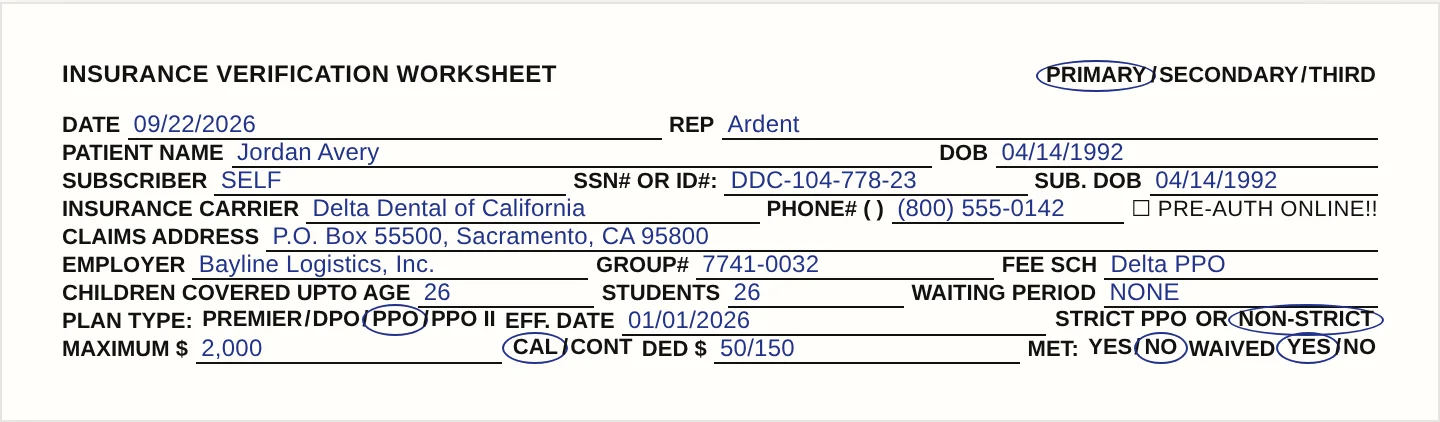
Filed into Dentrix Ascend as a chart document. Sample data, fictional patient. Watch a breakdown fill in on the home page →
Built-in eligibility
Dentrix Ascend Eligibility Pro and Ardent
Eligibility Pro is built into Dentrix Ascend and, per its own page, writes coverage back to Ascend’s coverage tables. Ardent does a different job: it fills the breakdown sheet your office already uses, phones the payer for the blanks a portal or 271 does not state, and keeps the source behind every value. The two can coexist, and Ardent never edits what Eligibility Pro or your team writes into Ascend.
The exceptions
What still needs a person
Anything Ardent could not verify. Every weekday at 7:00 AM your front desk gets one email, with the subject [Ardent Dental] <Office> Insurance Eligibility for <Weekday, Month D>. It lists each appointment Ardent could not verify and why, in plain words: a member ID missing, a plan that ended, a payer Ardent cannot check yet. On Ascend that email and the app carry the reasons; there is no appointment note.
A required blank the payer would not state stays blank on the sheet, the appointment is flagged "Someone has to call," and it is in that morning’s email. When every appointment verified, the email says so in one line.
Answers
Dentrix Ascend insurance verification FAQ
No. Ardent files the completed sheet as a PDF to the patient file. It never edits insurance plans, coverage tables or fee schedules in Ascend, and on Ascend it does not write an appointment note either. Plan entry in the software stays with the office, done from the filled sheet in the chart.
Directly in the patient file. Through NexHealth, Ascend has no document folder structure, so the PDF uploads straight to the patient. The file is named insurance-eligibility-<first>-<last>.pdf, shows REP "Ardent" and the date the check finished, and is filed once per appointment; a chart keeps every filed check.
A NexHealth user, not an Ardent one. For cloud systems NexHealth asks the office to create a dedicated NexHealth user in the PMS and to install its Chrome extension on each workstation that edits the schedule. Ardent never signs into Ascend; it reads and files through NexHealth. Ardent’s own users are your staff, on your practice’s email domain.
Because NexHealth supports updating an appointment’s note only on Dentrix, Dentrix Enterprise, Eaglesoft and Open Dental. On Ascend the next sync would restore the old note, so Ardent does not write one. Every failure reason still reaches you: in the 7:00 AM email and on the appointment card in the Ardent app.
It does a different job. Eligibility Pro is native to Ascend and writes to coverage tables. Ardent fills your own breakdown sheet blank by blank, phones the payer for what the portal leaves open, and files the PDF with every value’s source. Keep Eligibility Pro if you use it; Ardent will not touch what it writes.
NexHealth says to allow up to 72 business hours for the cloud install once the NexHealth user and Chrome extension are in place. That is NexHealth’s figure for its step. After that, Ardent runs a baseline pull with your office and switches on polling, the ahead-of-visit run, the digest and filing one at a time. We do not publish a go-live date.
The appointment is set to "Needs info" instead of guessed at, the reason appears in the 7:00 AM email and on the appointment card in the app with a "Fix & re-run" button. Once the front desk corrects the record in Ascend, the next check runs from the corrected details.